How to Use an Online Metronome
Learn how to practice with an online metronome, choose a BPM, use accents and build focused practice blocks.
A metronome is most useful when it supports a clear practice goal. Start simple, then add more settings as needed.
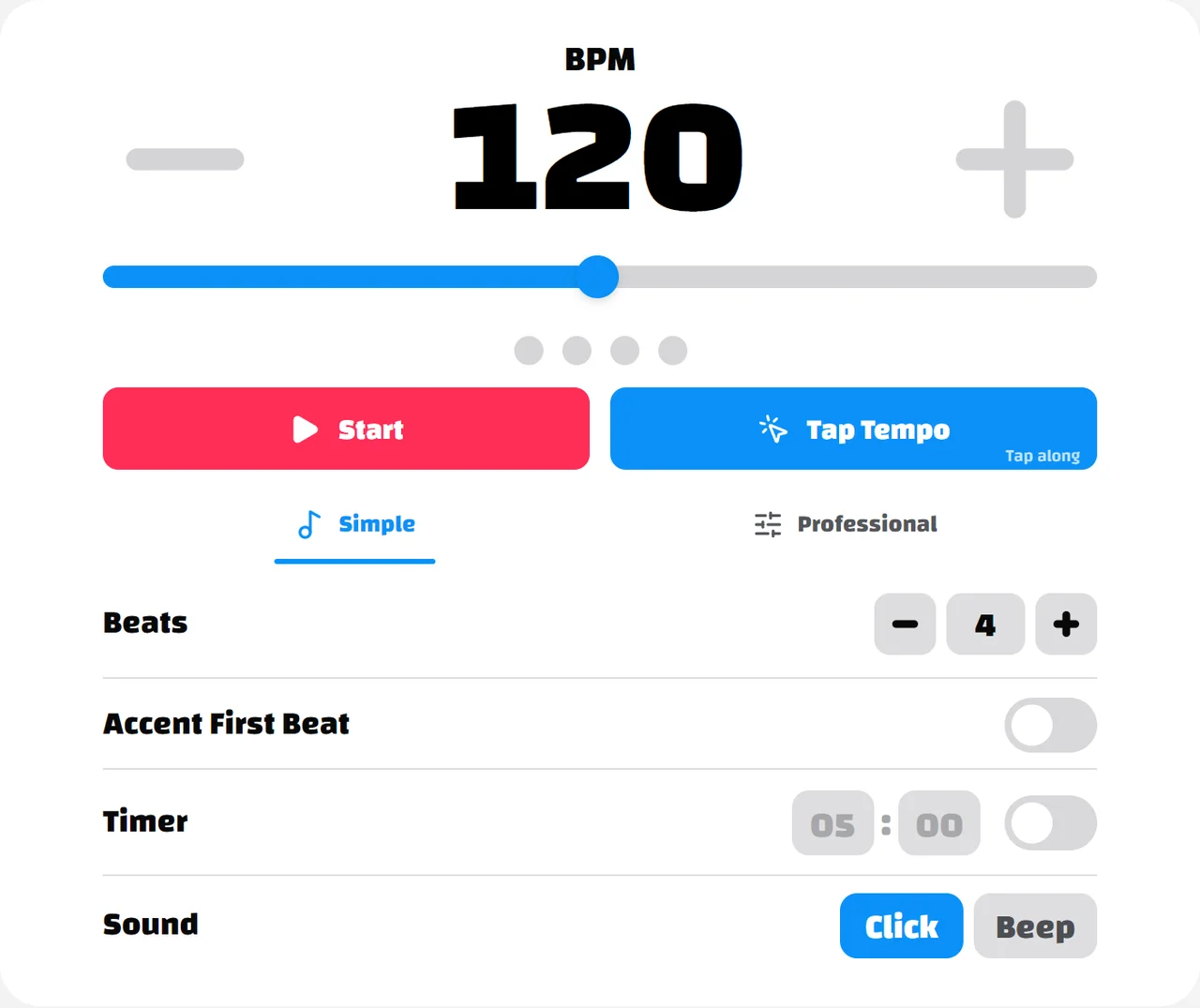
Choose a tempo you can control
Choose one short passage, not an entire piece. Start at a speed where you can play the notes, count the rhythm and stay relaxed. At 60 BPM, clicks are one second apart; at 120 BPM, they are half a second apart. A convenient starting number is less important than an accurate performance.
Play the passage several times before changing the setting. Increase by a small amount, such as 2-5 BPM, only when timing and movement remain consistent. Return to the previous speed if errors repeat. This is a practice method, not a fixed rule for every instrument.
Match the click to the music
Simple mode is useful when you only need a beat count and a clear first beat. Select three beats for a three-beat exercise or four for a four-beat exercise. In Professional mode, choose the written time signature and a preset grouping instead.
This website times one written unit per click. In 6/8 that unit is an eighth note, not the dotted-quarter pulse often used by a conductor. If a score marks dotted quarter = 60, use 180 BPM with 3 + 3 grouping: three clicks make each larger pulse.
A focused five-minute practice block
Set the timer to five minutes and choose a single goal. The example below separates listening, playing and checking; adapt the duration to the difficulty of your passage.
| Time | Task | Listen for |
|---|---|---|
| First minute | Count and clap with the click | A steady start without rushing |
| Next two minutes | Repeat one short passage | Even notes and relaxed movement |
| Fourth minute | Try a small tempo increase | The same accuracy at the new setting |
| Final minute | Return to the original tempo | Whether the passage feels easier |
Use subdivisions to find uneven notes
If two notes must fit inside each click interval, practise counting both positions before playing them. Professional mode provides subdivision patterns that make those positions audible. Start with an even pattern before trying a dotted or uneven one.
The added sounds divide the current click interval; they do not change the selected time signature or the main BPM. Turn the subdivision off again to check whether you can maintain the same spacing without every note being marked.
Check timing without relying on an accent
The first-beat accent marks the start of a measure. In Professional mode, later group starts have a lighter accent. Count aloud while the accents are on, then turn them off and keep the same grouping yourself.
Tap Tempo can estimate the pulse of a recording, but a tap series can also follow a half-time or double-time pulse. Compare the result with the phrase and score rather than treating a single reading as definitive.
When the sound feels delayed or stops
Bluetooth headphones can delay sound relative to your movement or the visual beat. Compare with wired headphones or the device speaker before changing your playing to compensate. Keep volume comfortable and avoid fighting the click.
Mobile browsers may suspend audio when the screen locks or the tab moves into the background. Return to the page and restart playback if necessary. A browser metronome cannot guarantee uninterrupted background playback on every device.